
Welcome to the Source Media Help Center!
Need help logging in, reading articles, or fixing an email issue? You’re in the right place. Below, you’ll find answers to our most common support questions. Most issues can be resolved in just a few clicks.
Still stuck? We’re here for you — fill out the form at the bottom of this page and we’ll respond within 1–2 business days.
Note: If your question is about your membership or billing, please email membership@ashlandsource.com or visit our Membership FAQ Page.
p.s. Need fast help? Use the Source Helper chatbot in the bottom corner — it’s trained to solve your most common problems!
How to Create & Manage Your Account
What is included in a free account?
Anyone with a free account will be able to read a limited amount of stories for free each month across our news network, which includes Richland Source, Ashland Source, Knox Pages, and Delaware Source.
With a free account you can submit Open Source questions, submit to our Jobs Board, publish events on our community Events Calendar, and read unlimited obituaries.
Want unlimited access? Become a member to unlock every story today.
How to create a free account
There are multiple ways to create a free account.
Via Sign In Button at the top of the screen
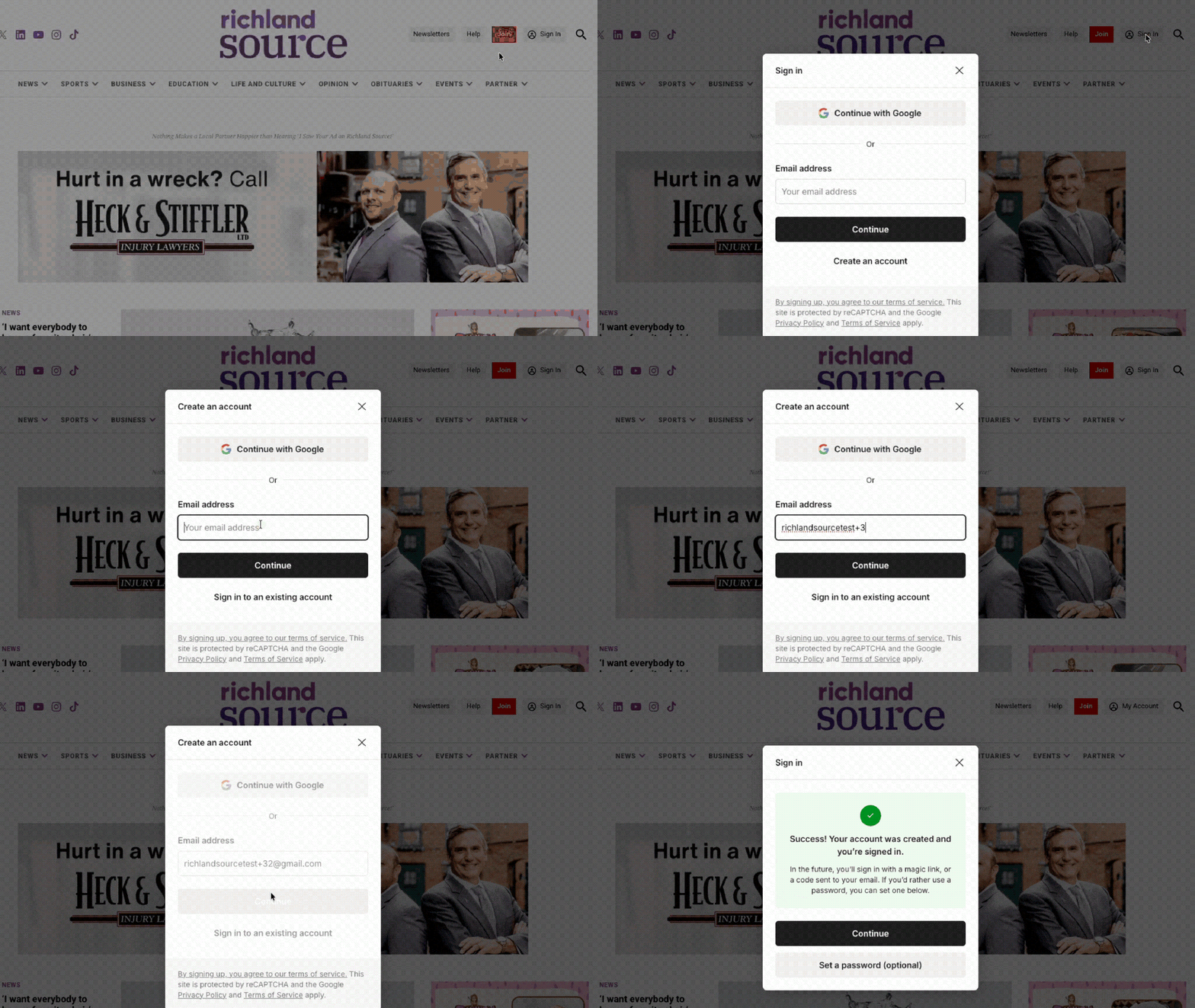
Click Sign In at the top of the screen – then select “Create an Account” – enter your email and hit “continue.” Congrats! You have a free account!
Via the content gate

If you are trying to access an article and it’s blocked by the content gate, click the red “Sign Up” button – enter your email – click ‘continue.’ The page will reload and you will be able to view the rest of the article with your free account!
How to login
You can sign in multiple ways on the site. The first option is to select the red “sign in” button in the top right hand corner of the site. On mobile, you’ll tap the circle with a person icon (located next to the menu).
Enter your email address and hit continue. If you have set a password, it will automatically prompt you for a password. If you do not have a password set, it will send you a one-time code to your email. When you open your email, either click the button in the email to be redirected back to the page you were on or copy/paste the 6-digit code into your open login screen.
Magic Code Login – Via Link

Magic code login – copy/paste

How to set a password
Click here to access your My Account settings. Be sure you are in the “Account Settings” area on the left hand menu. If you’ve never created a password before, you’ll see a black “Create Password” button about halfway down the screen.
Once you click that button you will receive an email. Open your email and click the “set password” button and follow the prompts.
If you already have a password, you will see the option to update your password. There is also a link to use if you’ve forgotten your password.
How to update your email
Click here to access your My Account settings. Be sure you. are in the ‘Account settings’ area on the left hand menu. In this section you will see “Email Address.” Type your new email address in here and click “Update Profile.” This will send a confirmation email to your new email address. You must click the button in this email for the change to take effect.
It will also send an email to your current email address. In the event you did not request this change, you are able to click a button that says to cancel the email update request.

Newsletters & Inbox Settings
How to manage your newsletter preferences
Newsletter preferences are managed in the my account area – click here. You can subscribe or unsubscribe to newsletters across our entire network here.
Inbox tips so you never miss an email from the Source
Nothing is more frustrating that signing up for a newsletter only to not see it show up in your inbox. Every email provider is a little different, but here’s some helpful tips to help ensure our emails hit your inbox the first time.
For Gmail users
Move us to your primary tab. On desktop you will drag and drop our email into the primary tab. It will prompt show a prompt at the bottom of the screen and you’ll select “yes”

On mobile, you’ll select the three dots at the top right of the screen – tap ‘move to’ – and select ‘primary.’

For Apple Mail users
Tap our email address at the top and select “Add to VIPs”
Add the Source to your contacts or “safelist”
Another useful way to ensure you don’t miss an email from us is to add us to your contact list. This is also called “safe listing.” Here is a useful website that walks you through how to do this for most email providers.
Common Questions
Why does it keep asking me to sign in?
Our sites are set up to remember you for up to a year; however, different browsers have different settings that can override this. You may find that you have to log in more often based on your browser’s settings.
Also, you will be prompted to log in for each new browser you sign in from. For example, you access an article on Facebook – that opens in a Facebook browser. You open an article from the Daily Headlines email in your Gmail – that often opens in a Gmail browser. And then you open an article directly in your usual web browser. These would each require you to log in the first time.
We strongly recommend setting a password and using a password saver tool to make this process quick and painless.
I have an account but it’s telling me I can’t read an article
The most common reason this occurs is that you are not signed in. Our sites are set up to remember your login for a year; however, if your browser settings are more limited or do not allow for 3rd party cookies it will override our settings. So the first thing to check is if you are logged in.
If you are logged in and it’s still telling you that you cannot read a story, that means you’ve reached your free article limit for the month. It will reset on the 1st of the next month.
You can also upgrade your account to become a Source Member to receive unlimited access to every story published across our news network.
How can I tell if I’m logged in?
The easiest way to tell is to look at the top right of the screen. If it says “My Account” that tells you you’re logged in!
If it says “Sign In” then you are not logged in.
💬 Still Need Help?
We’re here for you.
📧 Email: help@ashlandsource.com with a short description of your problem and the message, “Human help please!”
OR
⬇️ Fill out the form below:
I need more help:
Use the form below to tell us what’s going wrong — whether it’s a login issue, missing newsletter, or something else entirely.
🕒 Response Time: 1–2 business days
💡 Tip: Include a short description (or screenshot!) of the issue to help us respond faster.